Step by Step on How Using Figma Templates: A Guide for Beginners
Figma is one of the most popular design tools due to its collaborative capabilities. It allows multiple people to work on the same design in real time. Using Figma templates can significantly speed up your workflow, as they’re readily available in the Figma Community and across design marketplaces. Whether you need templates for web design, UI projects, or marketing materials, Figma templates provide a convenient and efficient solution compared to building designs from scratch.
However, first-time users often find it challenging to import and use Figma templates effectively. Since Figma has its own file format, it may not be immediately familiar to beginners. In this guide, we’ll walk you through a step-by-step process to help you use Figma templates seamlessly.
But First, What Types of Figma Templates Are Available?
As mentioned earlier, Figma offers more than just web and UI templates. Many users also look for Figma templates for social media graphics, presentation slides, posters, and flyers. Additionally, Figma provides branding and marketing materials to support business needs, as well as infographics and illustrations for visual storytelling.
Do You Need a Figma Account to Use Templates?
Yes, using Figma templates requires a Figma account. However, the level of access depends on how you use the platform. If you only want to view or explore templates, you don’t need a Figma account. You can open public Figma links shared by creators and view them directly in your browser. But, to duplicate and edit the template, you must have the account.
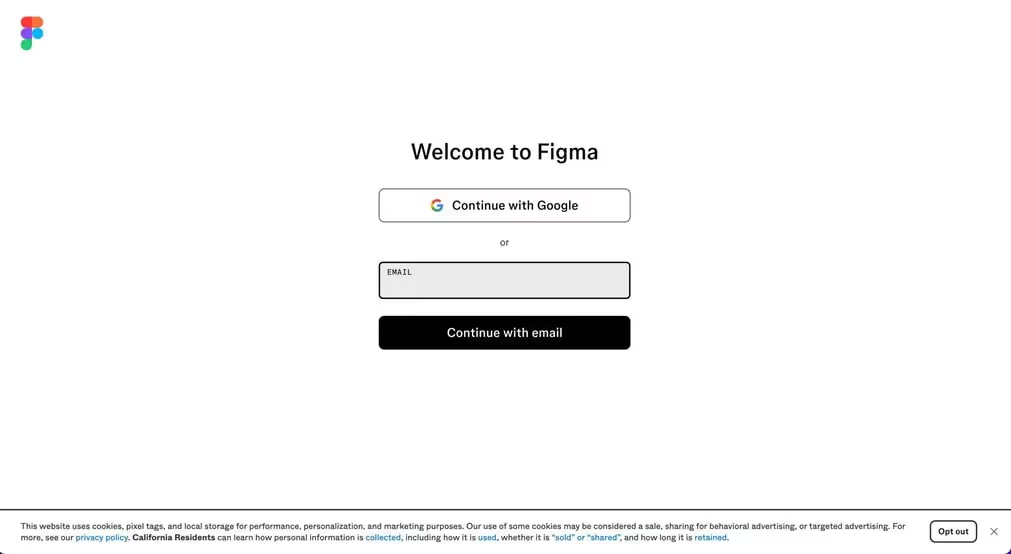
Here’s how you can create your Figma account and start using templates efficiently.
Click the “Sign Up” button in the top right corner.
(2) Choose a Sign-Up Method
You have multiple options to create an account:
Sign up with Google (fastest way)
Sign up with email & password
Sign up with SSO (for enterprise users)
(3) Enter Your Details
If using email, enter your email address and create a strong password.
If signing up with Google, select your Google account.
(4) Verify Your Email
Check your inbox for a verification email from Figma.
Click the verification link to activate your account.
(5) Set Up Your Profile
Enter your name and select your role (for example: designer, developer, etc)
Choose whether you want to start with Figma (for designing) or FigJam (for brainstorming)
(6) Start Using Figma
After setup, you’ll be redirected to the Figma dashboard.
You can now create new files, explore templates, or import Figma templates.
Using Non-UI Figma Templates
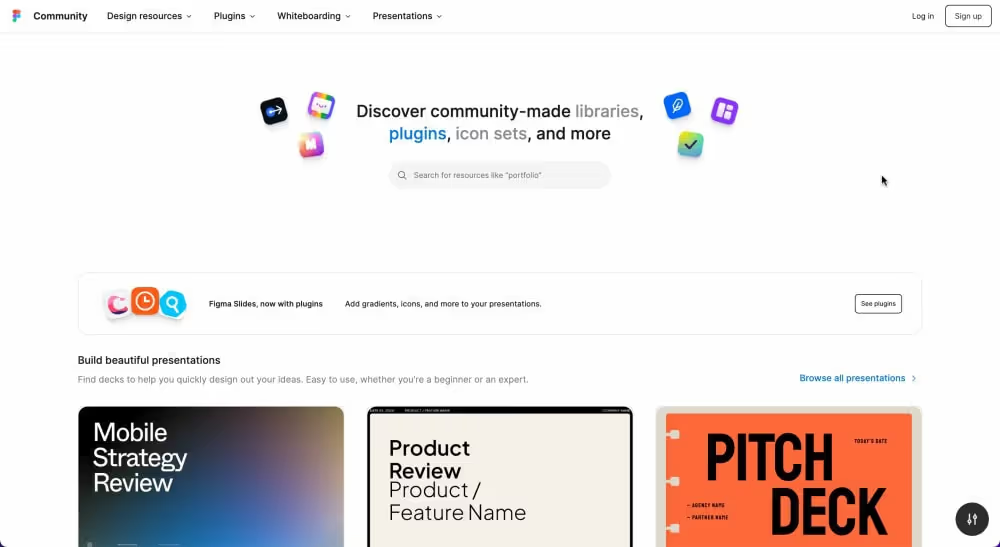
Figma Community
(1) Download the Template
Download the Figma template from a marketplace (like Figma Community, ThemeForest, or UI8) or use a shared link from a team member.
(2) Import or Duplicate the Template
If you downloaded a .fig file, go to File → Import and select the file.
If it’s a public Figma template, click “Duplicate” to add it to your workspace.
(3) Understand the Template Structure
Check the Layers Panel to identify text, images, and design elements.
Explore the Pages Panel to see different sections or variations of the template.
Access the Assets Panel to find reusable components like icons, buttons, and design elements.
(4) Customize Content
Edit text, colors, and fonts to match your branding or purpose.
Replace images by dragging and dropping new ones or using plugins (Unsplash, Pexels).
Adjust layouts as needed for better composition.
(5) Finalize the Design
Ensure all elements are properly aligned and formatted.
Check for consistency in fonts, colors, and spacing.
(6) Export the Final Design
Go to File → Export and choose the appropriate format:
PNG/JPG for social media graphics, posters, and flyers.
SVG/PDF for branding materials and illustrations.
PDF for presentations.
(7) Use and Share
Download and share your design for printing, presentations, or digital use.
Invite team members for feedback and collaboration.
Use commenting to discuss changes directly within the design.
Share as a view-only link if needed for clients or stakeholders.
Leverage Figma’s share feature to streamline feedback and approvals.
Using UI Figma Templates
(1) Download the Template
Get the Figma template from a marketplace (Figma Community, ThemeForest, UI8) or use a shared link from a team member.
(2) Import or Duplicate the Template
If you downloaded a .fig file, go to File → Import and select the file.
If it’s a public Figma template, click “Duplicate” to add it to your workspace.
(3) Understand the Template Structure
Check the Layers Panel to identify text, images, and design elements.
Explore the Pages Panel to see different sections or variations of the template.
Access the Assets Panel to find reusable components like icons, buttons, and UI elements.
(4) Customize Content
Edit text, colors, and fonts to match your brand and style.
Replace images by dragging and dropping new ones or using plugins (Unsplash, Pexels).
Adjust layouts while maintaining Auto Layout for responsive design.
(5) Prototype and Interactions
Switch to Prototype Mode to add interactions and navigation links.
Set up button clicks, hover effects, and transitions for a better user experience.
Preview the design by clicking “Present” to test functionality.
(6) Prepare for Developer Handoff
Inspect mode allows developers to view CSS, code snippets, and assets.
Ensure constraints and auto-layout settings are correct for responsive design.
Document design guidelines if necessary (colors, typography, spacing).
(7) Collaborate and Get Feedback
Invite team members to review and refine the design.
Use comments to discuss improvements or fixes directly in Figma.
Share a view-only link with stakeholders for approval.
(8) Finalize and Export
Check design consistency in fonts, colors, and spacing.
Go to File → Export and choose the appropriate format:
SVG, PNG, or JPG for UI assets.
PDF for documentation or presentations.
(9) Use and Implement
Handoff assets to developers for web/app implementation.
Sync with Webflow or Framer if needed for development.
Follow the Steps and Make Your Experience Using Figma Templates More Efficient and Seamless
The first four steps for using UI and non-UI Figma templates are the same. As a user, you only need to focus on the fifth step onward. UI templates require prototyping and developer handoff, while non-UI templates focus on finalizing visuals for print or digital use.
By effectively using Figma templates, you can simplify your design workflow for various creative projects. These templates work well for websites, social media, presentations, and branding materials. Following the right steps ensures smooth collaboration, efficient customization, and quick exporting. With Figma, you can bring your design ideas to life effortlessly and professionally.


.jpg)