Framer Template Customization: The Complete Guide to Building and Optimizing Your Website
As one of the no-code website builders, Framer is popular among designers and developers. It offers an intuitive interface and flexible tools for various design needs. A standout feature is its extensive template library, offering numerous options. These templates support easy Framer template customization for unique, professional websites. No coding is required to create stunning and functional sites.
Whether you're a beginner or experienced, customizing Framer templates can elevate your projects. It helps ensure your website aligns with your brand’s style and functional needs. Is it hard to customize it? Will it take forever to get the website you need? This guide will help you with everything you need to know, from choosing a template to optimizing for SEO and mobile.
Choosing the Right Framer Template
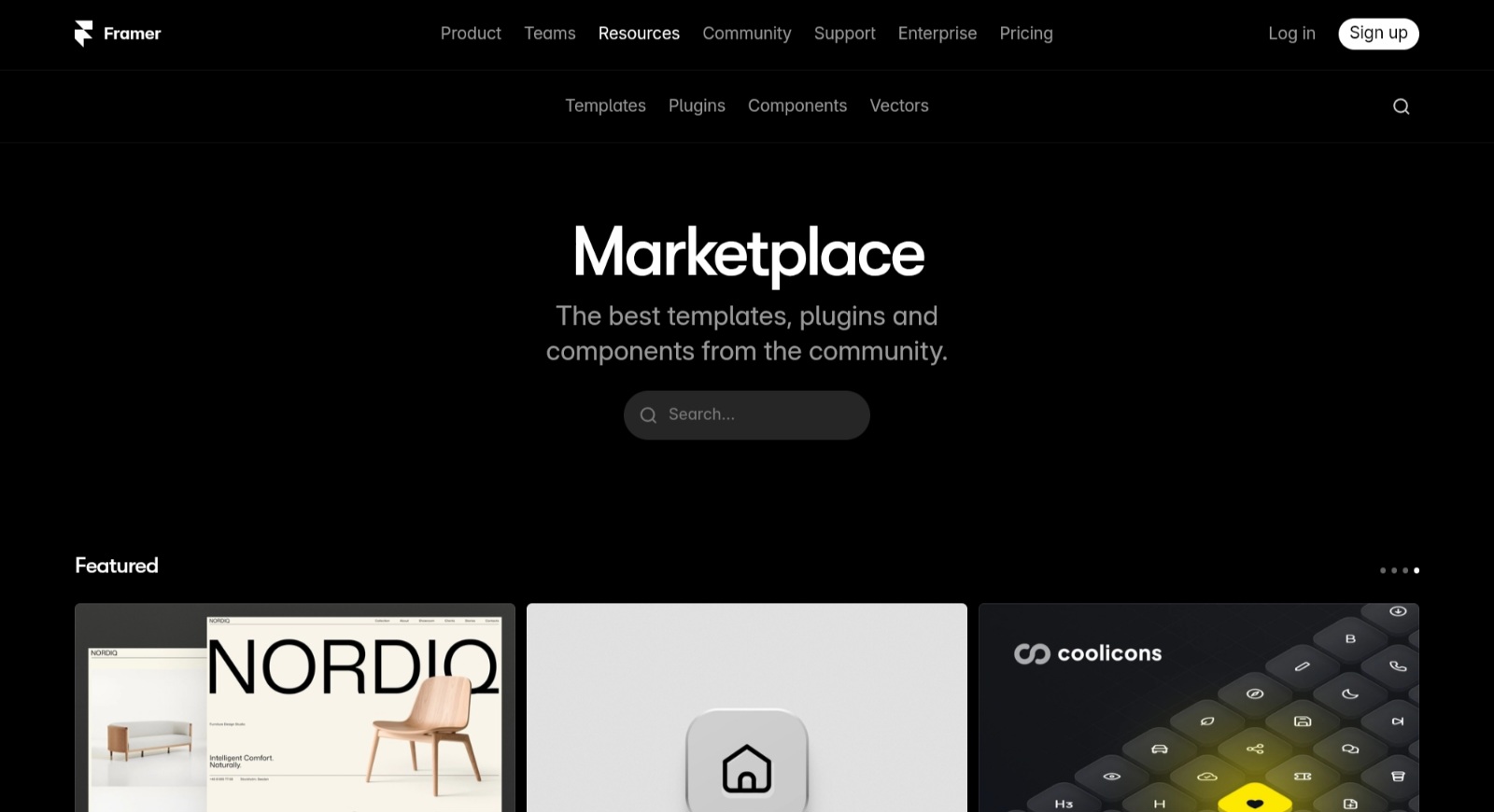
The first step in any successful Framer template customization process is selecting the right template. Framer’s marketplace offers over 1,000 templates ranging from free to premium, catering to various purposes like portfolios, e-commerce, blogs, and landing pages.
Framer’s editor is designed for ease of use, allowing you to modify every aspect of the template to align with your brand:
Text Editing: Double-click any text element to edit it. For components (elements with a purple outline), use the "Transform" panel on the right to adjust variables, ensuring changes apply consistently across the site.
Image Replacement: Replace images by double-clicking them and uploading new ones. Add descriptive alt text for SEO and accessibility to improve search rankings and user experience.
Colors: Update your color scheme by navigating to "Assets" > "Colors." If the template uses variables, changing them here will update all instances, saving time.
Fonts: Adjust fonts by selecting text elements and choosing new font styles from the "Text" panel. Ensure fonts align with your brand’s aesthetic.
Layout Adjustments: Use Framer’s drag-and-drop functionality to rearrange sections or elements. Be cautious with layout changes to avoid disrupting the template’s design integrity.
Animations and Interactions: Explore Framer’s animation tools to add micro-interactions, such as hover effects or scroll-triggered animations, to enhance user engagement. For example, you can add a fade-in effect for images or a smooth transition for buttons.
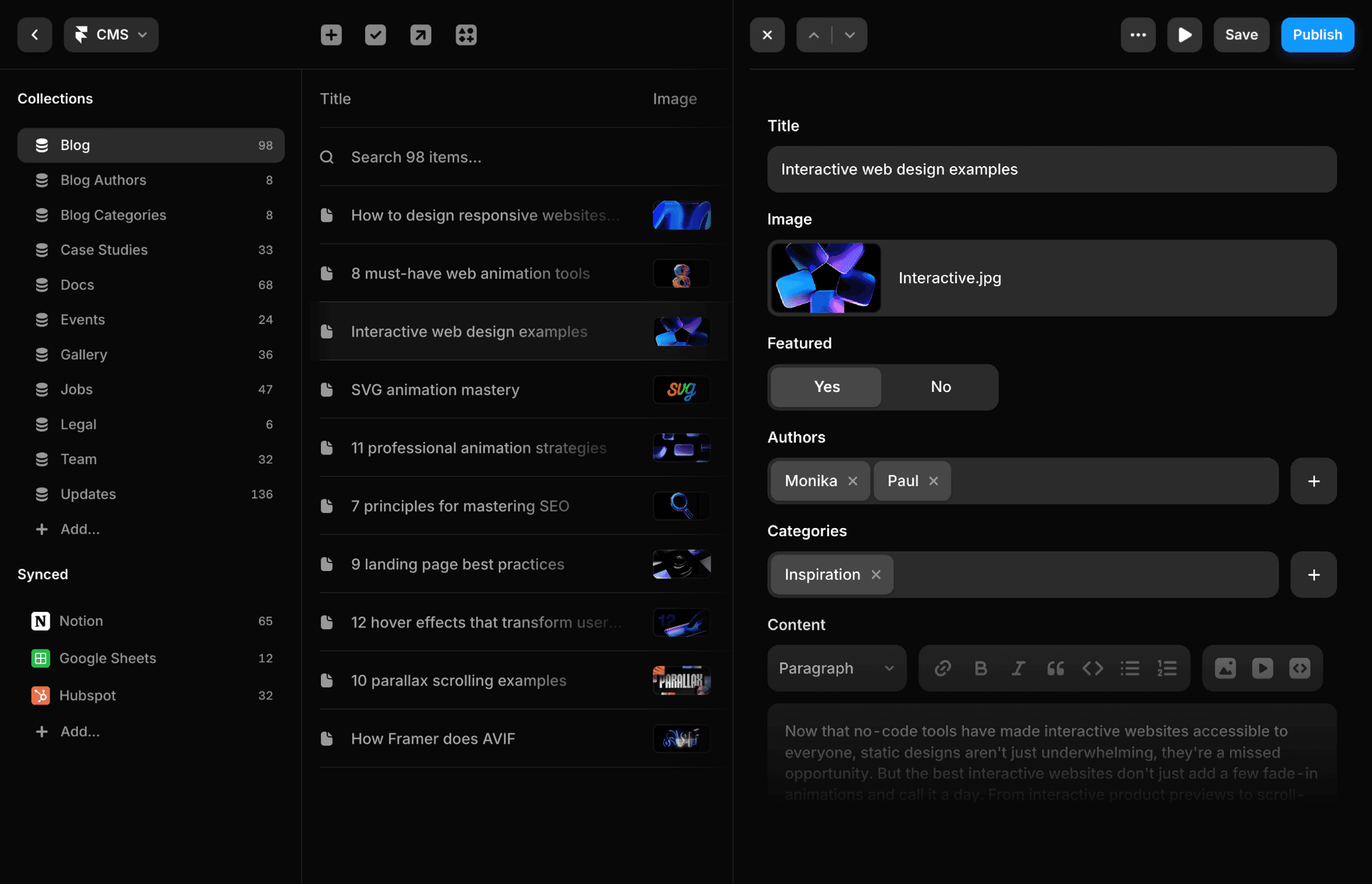
CMS Integration: If your template includes a CMS, use the CMS panel to manage dynamic content like blog posts, product listings, or team member profiles. Select the CMS collection, edit content, and save changes.
Tip: If you’re new to Framer, some templates come with free courses or guides to walk you through the customization process. Check the template’s documentation or the Framer Academy for additional resources.
Optimizing for Mobile and SEO
A vital aspect of Framer template customization is ensuring your site is optimized for both mobile devices and search engines. Framer templates are inherently responsive, but some adjustments may be necessary to ensure optimal performance on mobile devices and to improve search engine rankings.
Mobile Optimization
Framer templates are designed to adapt to different screen sizes, but you should verify and fine-tune the mobile experience.
Responsive Preview: Use Framer’s responsive preview tool to check how your site looks on mobile, tablet, and desktop. Adjust font sizes, padding, and layouts to ensure readability and usability on smaller screens.
Performance Optimization: Ensure your site loads quickly on mobile by:
Optimizing Images: Framer automatically compresses images to WebP or AVIF formats, but you can further reduce file sizes using tools like TinyPNG before uploading. Aim for images under 500KB.
Minimizing Animations: While animations enhance user experience, excessive animations can slow down mobile performance. Test and disable non-essential animations for mobile breakpoints.
Lazy Loading: Framer supports lazy loading for images and videos, which delays loading off-screen content until it’s needed, reducing initial page load time.
Breakpoints: Add breakpoints for different screen sizes (e.g., mobile, tablet) and adjust text styles, navigation, and layouts. Use relative units like percentages or rems for flexible designs.
SEO Optimization
Site Setting for SEO Optimization
To improve your site’s visibility in search engine results:
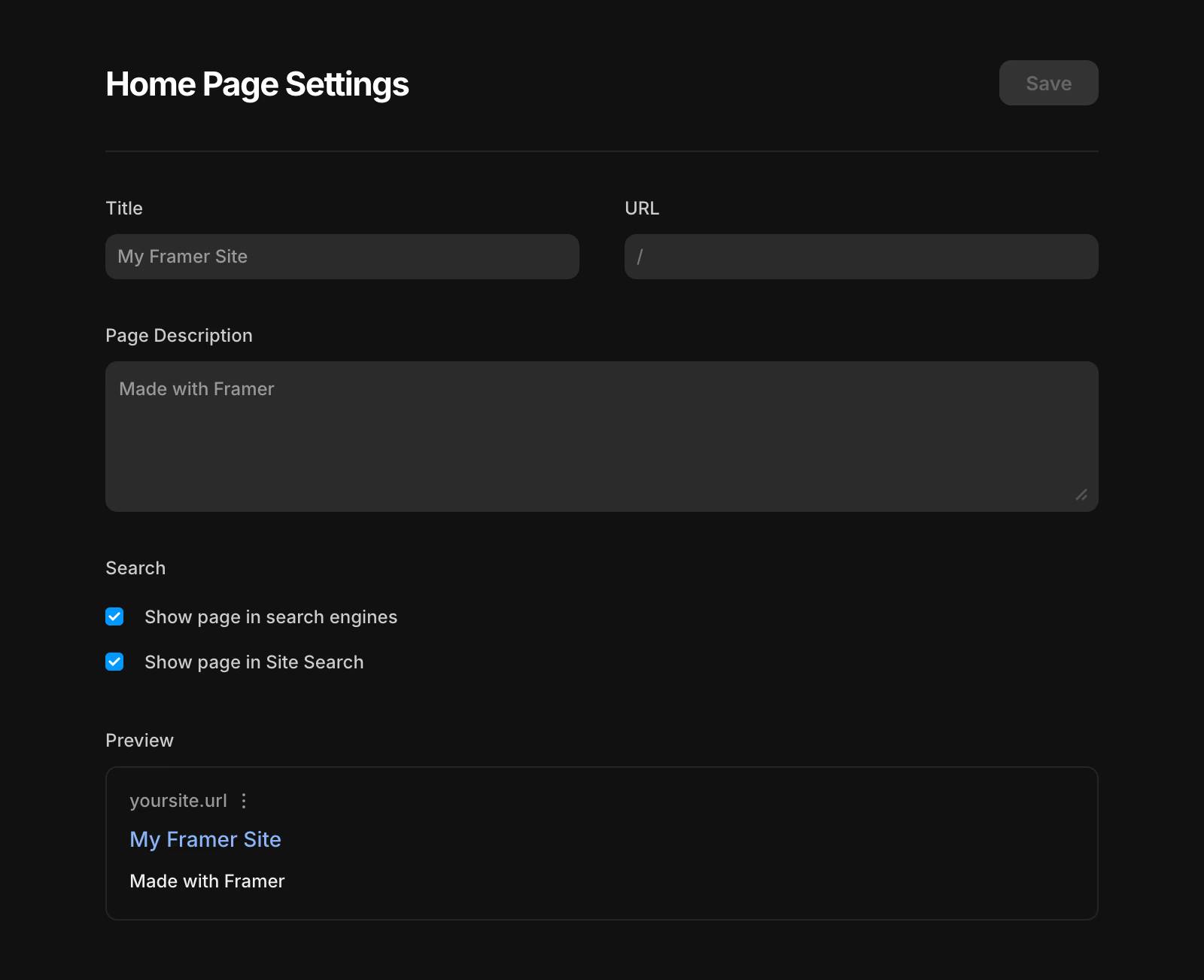
Meta Tags: Edit the meta title and description for each page in the Site Settings. Include relevant keywords, such as “portfolio website” or “e-commerce store,” to boost rankings.
Alt Text: Add descriptive alt text to all images to help search engines understand your content and improve accessibility.
Page Speed: A fast-loading site is critical for SEO. Framer’s built-in optimizations, such as image compression and efficient font loading, help, but you can further enhance speed by minimizing custom code and removing unused components.
Pro Tip: Use tools like Google PageSpeed Insights to test your site’s performance and identify areas for improvement. Regularly check your site’s mobile-friendliness, as Google prioritizes mobile-first indexing.
Connecting a Domain and Publishing
Once your Framer template customization is complete, it’s time to publish. Framer offers two publishing options to suit your needs:
Framer Subdomain: For free templates, your site will be published on a free domain, such as your-site.framer.website. This is a quick and cost-effective way to get your site live without additional setup.
Custom Domain: For a professional appearance, connect your own domain. Navigate to Site Settings > Domains > Custom Domain and follow the instructions to link your domain. This typically involves updating your domain’s DNS settings to point to Framer’s servers.
Before launching:
Preview Your Site: Use Framer’s preview feature to ensure everything looks and functions as expected.
Test Functionality: Check all links, forms, and buttons to confirm they work correctly. For example, test contact forms to ensure submissions are received.
Connect Analytics: Integrate Google Analytics by copying your measurement ID from GA4 and pasting it into Site Settings > General > Google Analytics. This allows you to track visitor behavior and site performance.
Maintaining Quality and Performance in Framer Template Customization
Following best practices ensures your Framer site remains consistent, flexible, and easy to manage. Use component variables to streamline edits across repeated elements. Organize CMS collections with clear labels and guidelines for efficient content updates. Name layers descriptively and group them logically for faster navigation. Keep layouts responsive using stacks, fluid constraints, and minimal, well-documented custom code.
Furthermore, a successful website requires regular attention and thoughtful improvements. Update your content frequently to keep visitors engaged and encourage return visits. Monitor analytics to identify performance trends and opportunities for growth. Regularly review SEO, mobile responsiveness, and loading speed for continued competitiveness. With consistent care, your Framer template customization will deliver lasting results.


.jpg)